Licensing Help
Thank you for buying a license from DssW. This page contains information about how to apply your licence details.
Select your product:
- Power Manager:
- Sleep Monitor:
- Activity Audit
- Battery Report
Power Manager
Your Power Manager licence is provided as a certificate file. This certificate file is attached to the e-mail from DssW and the file needs to be added to Power Manager.
To add your licence certificate to the Power Manager application:
Open the Power Manager application.
Unlock the Scheduler to allow changes. Select the menu item: Scheduler > Unlock Access…
Select the menu item: Scheduler > License Options…
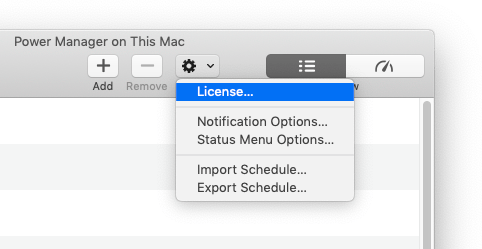 The Action (cog) menu also includes a License… option
Select Add… and choose your licence file.
Click Add.
Power Manager 4
Your Power Manager 4 licence details consist of three pieces of information: the licensed name, organisation, and licence code. These three pieces of information are included in your receipt and purchase details e-mail.
Enter your licence details in the Power Manager application:
- Open Applications > Power Manager.
- Select License Options… from the Scheduler menu,
…or… select License… from the Action (cog) menu. - Enter your licence details exactly as provided.
- Click Apply.
Power Manager Professional 4
Your Power Manager Professional 4 licence details consist of three pieces of information: the licensee name, organisation, and licence code. These three pieces of information are included in your receipt and purchase details e-mail.
Enter your licence details in the Power Manager Professional application:
- Open Applications > Power Manager Pro.
- Select License… from the Power Manager Pro menu.
- Enter your licence details exactly as provided.
- Click Apply.
Your Power Manager Professional 4 licence includes a licence for Power Manager 4. Use your Professional licence details to license one Mac to run the standard edition of Power Manager.
Power Manager 3
Your Power Manager 3 licence details consist of three pieces of information: the licensee name, organisation, and licence code. These three pieces of information are included in your receipt and purchase details e-mail.
Enter your licence details in the System Preferences:
- Open Applications > System Preferences.
- Navigate the Power Manager preference pane.
- Select License… from the Action (cog) menu.
- Enter your licence details exactly as provided.
- Click Apply.
On macOS 10.6, you should restart or log out after entering your details for the status menu item to update.
Sleep Monitor 3
Your Sleep Monitor licence details consist of three pieces of information: the licensee name, organisation, and licence code. These three pieces of information are included in your receipt and purchase details e-mail.
Enter your licence details in the Sleep Monitor application:
- Open Sleep Monitor.
- Select License… from the Sleep Monitor menu.
- Enter your licence details exactly as provided.
- Click Apply.
Activity Audit
Your Activity Audit licence details consist of three pieces of information: the licensee name, organisation, and licence code. These three pieces of information are included in your receipt and purchase details e-mail.
Enter your licence details in the Activity Audit demonstration application:
- Open Activity Audit.
- Select License… from the Activity Audit menu.
- Enter your licence details exactly as provided.
- Click Apply.
Battery Report
Your Battery Report licence details consist of three pieces of information: the licensee name, organisation, and licence code. These three pieces of information are included in your receipt and purchase details e-mail.
Enter your licence details in the Battery Report demonstration application:
- Open Battery Report.
- Select License… from the Battery Report menu.
- Enter your licence details exactly as provided.
- Click Apply.
Sleep Monitor 2
Your Sleep Monitor 2 licence details consist of three pieces of information: the licensee name, organisation, and licence code. These three pieces of information are included in your receipt and purchase details e-mail.
Enter your licence details in the Sleep Monitor utility:
- Open Applications > Utilities > Sleep Monitor.
- Select Buy Now… from the Sleep Monitor menu.
- Enter your licence details exactly as provided.
- Click Apply.