Creating Hourly Triggers
Triggering an event every hour is possible with Power Manager, despite no dedicated trigger.
In this recipe we show how to create hourly triggers for a Power Manager event. This recipe shows how an event can performed each hour, between two times, on specific days of the week.
Power Manager does not1 have a specific trigger for hourly triggers but it is possible.
Every Power Manager event can contain multiple triggers. Thus a single event can contain one trigger for each hour of the day. Together the triggers provide the desired hourly behaviour for the event.
In the screenshot below, the single Power Manager event contains eight daily triggers spanning 11am – 5pm:
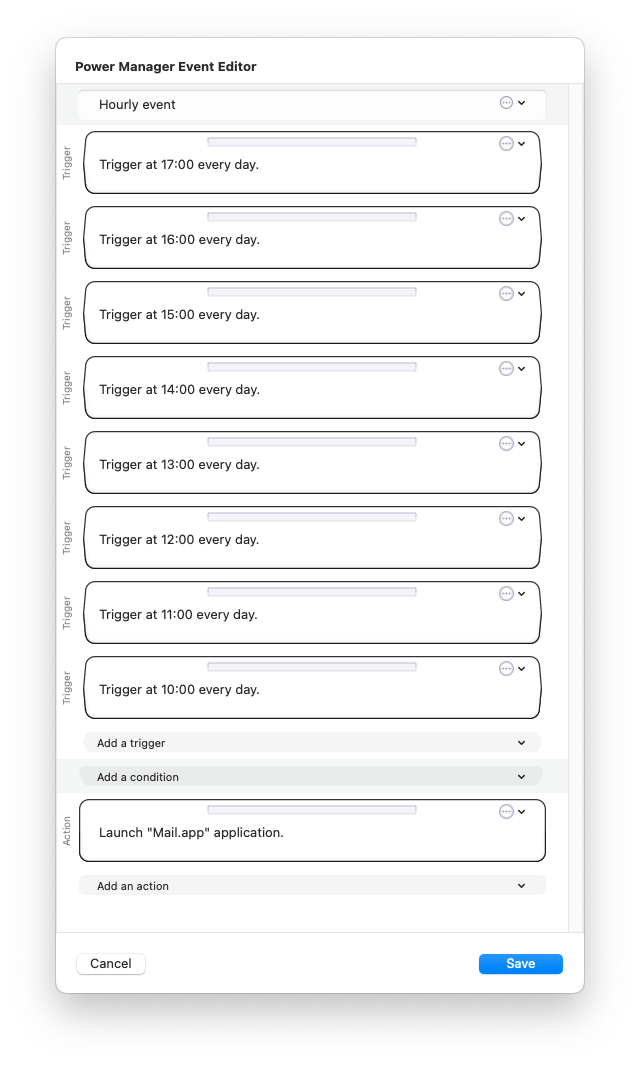
Creating one trigger per hour is time consuming and error prone. Even with copying and pasting, or duplicating triggers, creating 23 triggers is not trivial. Thankfully Power Manager is itself scriptable. So we can write a script to perform the repetitive trigger creation. A script can quickly create events with large numbers of triggers to suit almost any situation.
There is something delightful about being able to automate an automation tool.
Scripted Triggers
We are going use the AppleScript below to create our hourly event and it’s triggers. Once created you can customise the event by adding conditions and actions in Power Manager’s event editor.
Open in Script Editor-- Create an event with a range of hourly triggers.
tell application "Power Manager"
-- Set inclusive start and end hours (24 hour notation)
set startingHour to 0 -- midnight
set endingHour to 23 -- 11pm
-- Set days of the week to trigger
set daysOfTheWeek to [Monday, Tuesday, Wednesday, Thursday, Friday, Saturday, Sunday]
set secondsPerHour to (60 * 60)
-- Create the event in the workshop
tell workshop
-- Create a new event
set myEvent to make new event with properties {name:"Hourly event"}
-- Create a new trigger for every hour of the day
repeat with i from 0 to 23
if i ≥ startingHour and i ≤ endingHour then
make new trigger daily with properties {seconds from midnight:i * secondsPerHour, days:daysOfTheWeek} at end of triggers of myEvent
end if
end repeat
end tell
-- Deploy the event
tell event store to store these events myEvent
-- Clean up the workshop
empty workshop
end tell
Creating an Hourly Event
To use the script, follow the steps below:
Open macOS’s Script Editor:
Applications > Utilities > Script Editor.app
Copy and paste the script above into the editor;
Edit the script’s
startingHour,endingHour,daysOfTheWeekvalues as needed; these control the times and days;Run the script using the menu item:
Script Editor.app > Script (menu) > Run
A new event called Hourly event will be created in Power Manager;
Double-click the new event within Power Manager to open the editor. Alternatively, use the menu item:
Power Manager.app > Edit (menu) > Edit in Event Editor…
Add and customise the event’s actions as desired.
The AppleScript can be run as many times as needed. It will create a new event each time.
Traditionally, Power Manager avoided duplicating functionality offered by built-in macOS tools like
cronorlaunchd. However, times are changing. ↩︎